How-to · about 5 minutes
How to list your gear
Snap a photo and our AI does the fiddly bits: it recognises the brand and model, picks the right category so renters find it, and suggests a fair price from what it costs new. You check it and stay in charge of every detail.
1Snap your gear
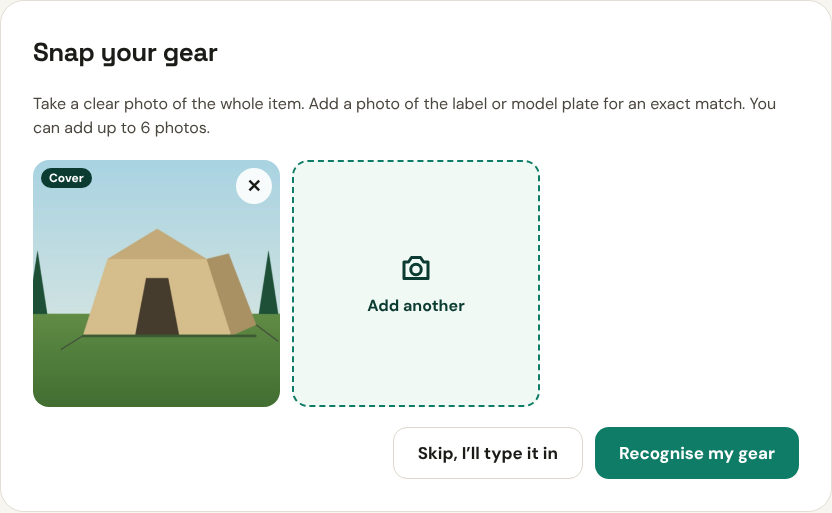
Tap List gear, then Take or choose a photo. Get the whole item in the shot, in good light. You can add up to 6 photos; the first one is the cover.
- Add a close-up of the label or model plate. It’s the quickest way to an exact brand and model match.
- No photo handy? Tap Skip, I’ll type it in and add photos before you publish.
2Let AI recognise it
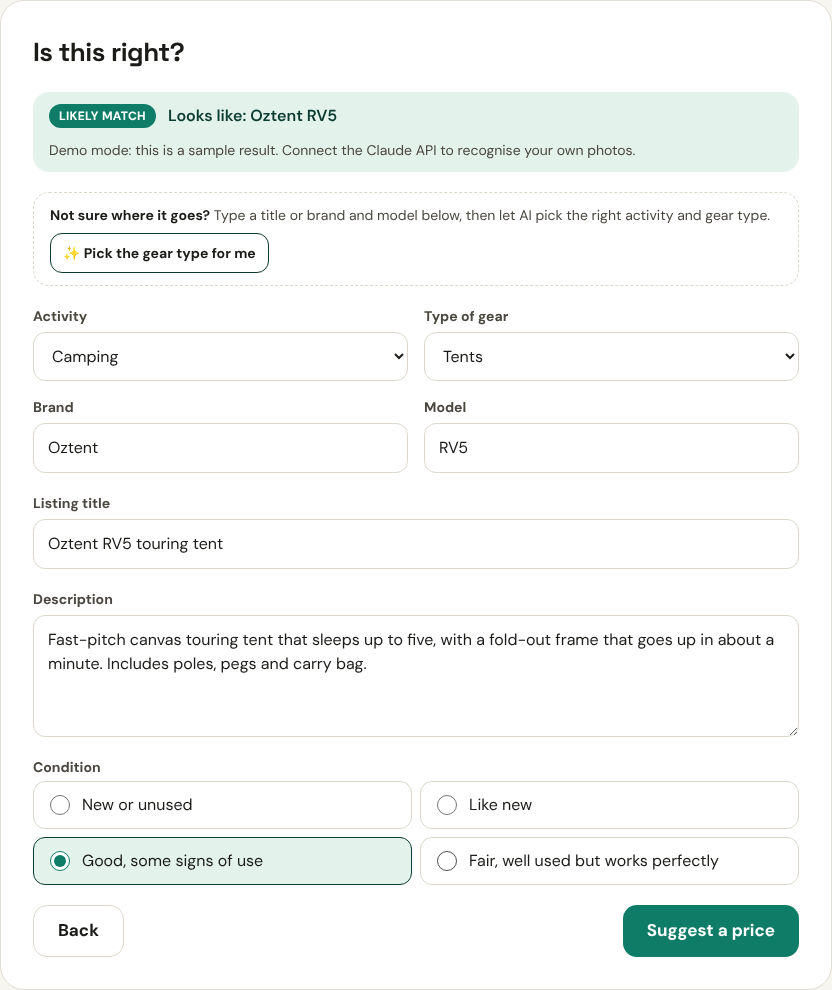
Tap Recognise my gear. The AI looks at your photo and fills in the activity, type of gear, brand, model, a title and a short description. The green badge tells you how sure it is: Confident match, Likely match or Best guess.
- Check every field. You know your gear best, so change anything that isn’t right.
- It only names a brand or model it can actually see. If it leaves one empty, type it in from the label.
3Not sure which category? Ask AI
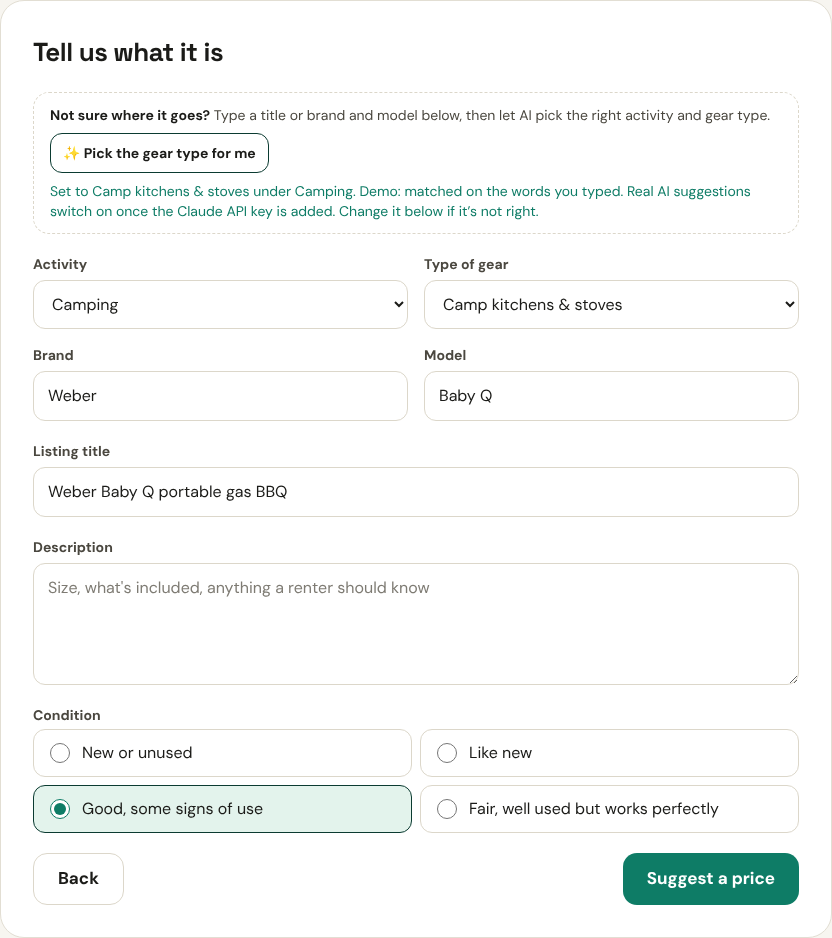
Typed it in yourself, or not sure whether a portable BBQ goes under Camp kitchens & stoves or somewhere else? Type the title, or the brand and model, then tap ✨ Pick the gear type for me. The AI picks the closest activity and type of gear from our list and tells you what it chose. The right category means renters searching for that gear find yours.
- The more you type (brand, model, a few words of description) the better the pick.
- Still not right? Change the two drop-downs yourself. Nothing is locked.
4Pick the condition
Choose New or unused, Like new, Good or Fair. Be honest: condition changes the suggested price, and renters expect the gear to match the listing.

5Get a fair price from AI
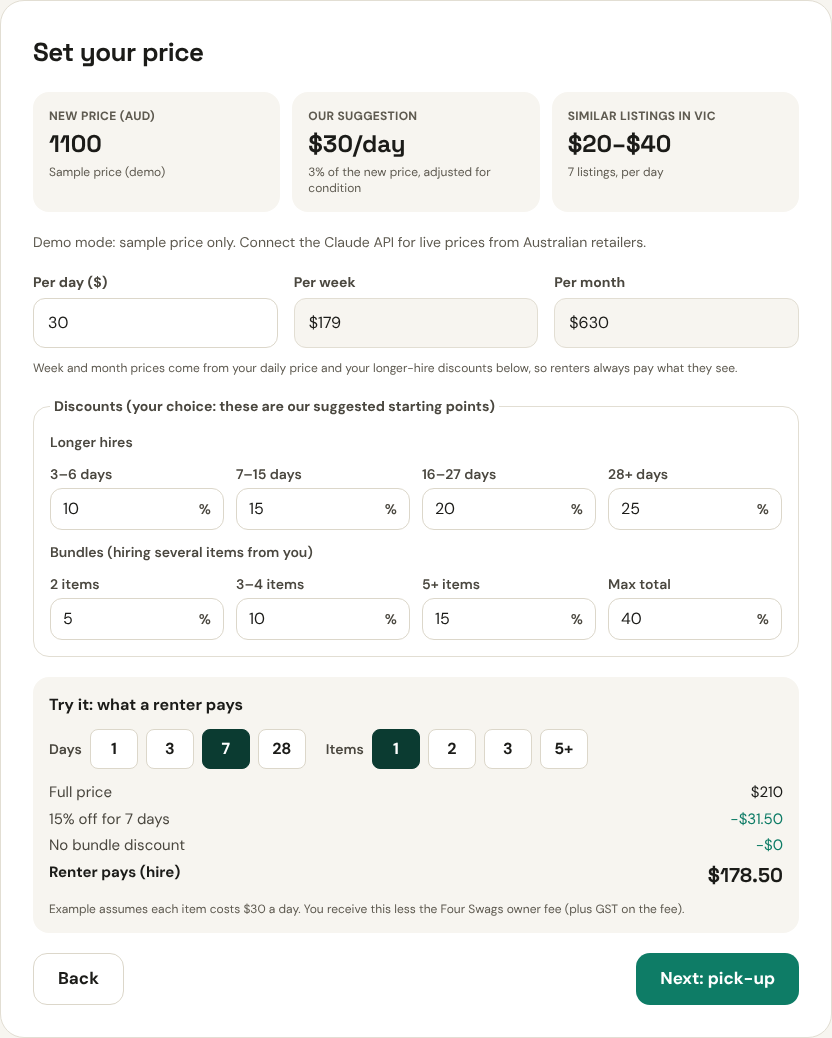
Tap Suggest a price. The AI looks up what your item costs new from Australian retailers, then suggests a daily price as a small share of the new price (a few percent a day, depending on the type of gear), adjusted for condition. Week and month prices come from your daily price and your longer-hire discounts, so renters always pay what they see.
- If it can’t find the new price, type it in. The suggestion updates straight away.
- The suggestion is a starting point. Set any price you like, and use the earnings example to see what you’d take home.
- If your price is well above our suggestion, you’ll see a heads-up (you can still keep it).
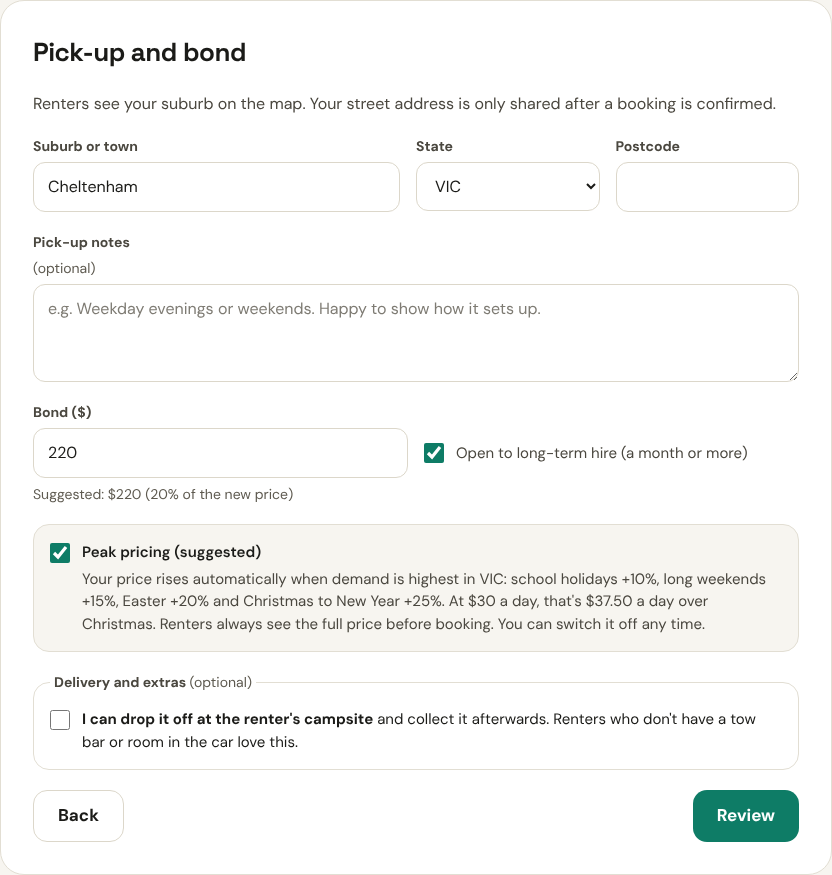
6Pick-up, bond and extras
Add your suburb (renters only see the suburb; your street address is shared after a booking is confirmed). We suggest a bond of about 20% of the new price, which is held on the renter’s card and released after a good return. You can also offer delivery, set-up and peak-season pricing.
7Check it and list it
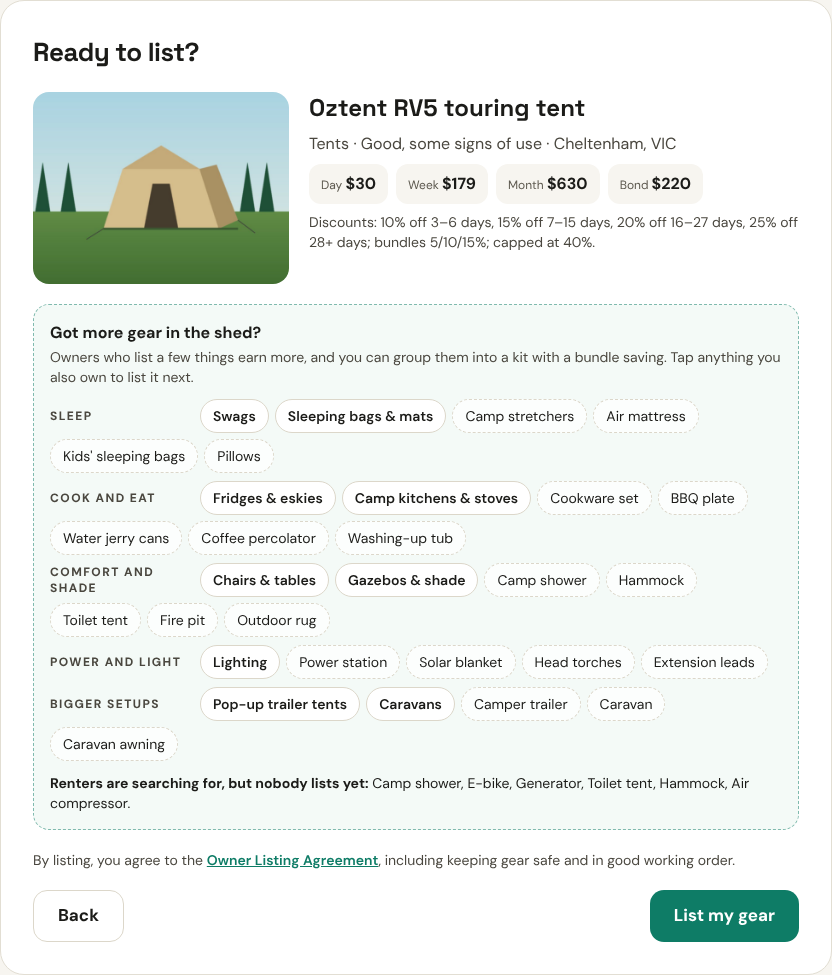
Tap Review to see your listing the way renters will, then List my gear. You can edit it, pause it or block out days from My listings any time.
Good to know
- The AI’s suggestions are a starting point, never a promise. Check the brand, model, category and price before you list.
- Your photos are used to recognise the item and to show on your listing, nothing else.
- Have more gear? After you list, we suggest other things renters are looking for near you.